The device

A complete network test kit, in one hand.

Voxkit runs on a pocket-sized Linux handheld with its own screen, keyboard and battery. There's no laptop to boot and no app to pair: plug it into a socket, press a key, read the answer.

Raspberry Pi 4 inside Gigabit Ethernet Dual-band Wi-Fi 4G optional
1
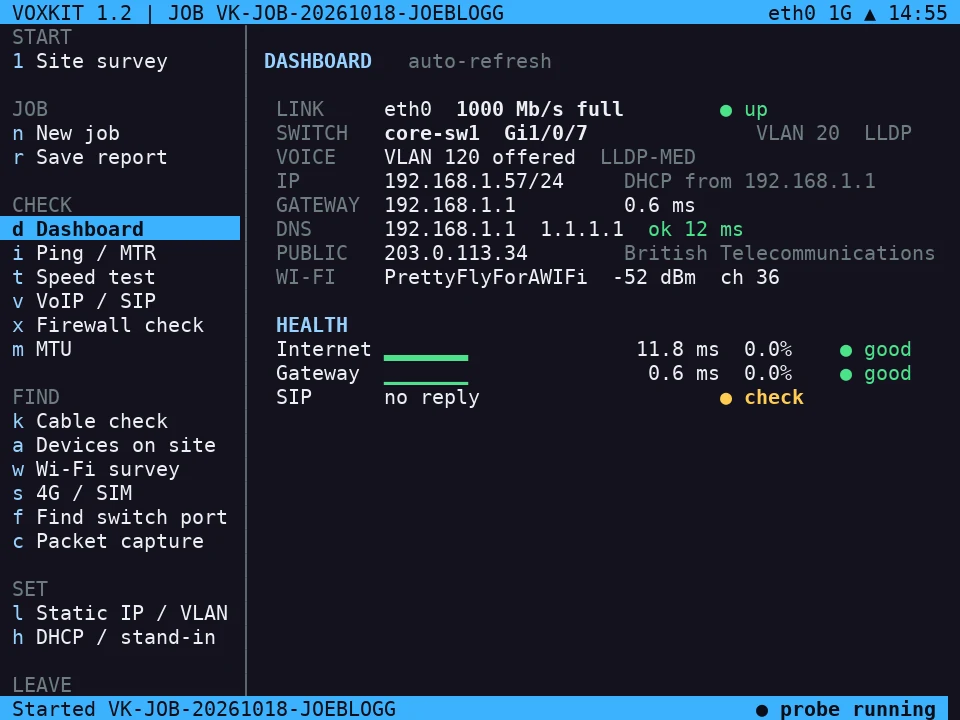
The dashboard screen2
3
Front of the Voxkit handheld with the keys Voxkit uses highlighted 1 2 ▲ ▼ ◀ ▶ 3 L R X Y A B Select Start 10 1 F1 2 F2 3 F3 4 F4 5 F5 6 F6 7 F7 8 F8 9 F9 0 F10 Q Esc W E R T Y U I O F11 P F12 A S D F G H J K L ⌫ Del Z X C V B N M , . ↵ Fn Shift Ctrl Alt Tab 4 5 6 6 7 8 8 9
Simplified drawing. Highlighted keys are the ones Voxkit uses.
Key functions

Every key that matters, at a glance.

  1. Battery lightsCharge in quarters. A flashing light means that quarter is charging.
  2. ScreenTools on the left, results on the right. The bottom bar always shows the keys for the screen you're on.
  3. Arrow keysUp and down to choose a tool, or to pick from a list such as nearby Wi-Fi networks.
  4. EnterRun the tool on screen: start a test, stop it, save the report or confirm what you typed.
  5. Tool letters (solid blue)Jump straight to a tool: D dashboard, T speed test, V VoIP, X firewall, F find port, P probe mode, and so on.
  6. E and OE edits a setting. O opens the second action on each screen: the IT message, join Wi-Fi, the hotspot, 4G on and off, or the stand-in router.
  7. QQuits Voxkit. It asks first, then puts the network settings back.
  8. J and KScroll down and up through long lists like network scans and Wi-Fi surveys.
  9. FnReaches the blue symbols. Fn and Q together is Esc, which cancels typing or closes a list.
  10. Game buttonsL, R, X, Y, A, B, Select and Start aren't used by Voxkit.

Ports: the network port, four USB ports and the USB-C charging socket are along the edges of the case.

Anatomy

Four parts you'll use on every job.

  1. Battery gauge

    Four lights above the screen show the charge in quarters. While charging, the quarter being filled flashes.

  2. 3.5 inch colour screen

    Big enough for a full results page: the menu on the left, the live tool on the right, status along the top and bottom.

  3. Keyboard

    A full QWERTY keyboard with arrow keys. Every tool has a one-letter shortcut, so most jobs are a few key presses.

  4. Connections

    Gigabit network port for testing, USB for a 4G dongle or memory stick, and USB-C for charging.

Connections

What plugs in where, and when.

Most tests run through the network cable, because that's the path the phones will use. Everything else is there for the jobs that need it.

PortUse it forNotes
Gigabit EthernetSpeed, phone, firewall, switch-port, cable and scan tests. Bench setup and stand-in router.Plug into a wall socket, a spare switch port or straight into a phone or router.
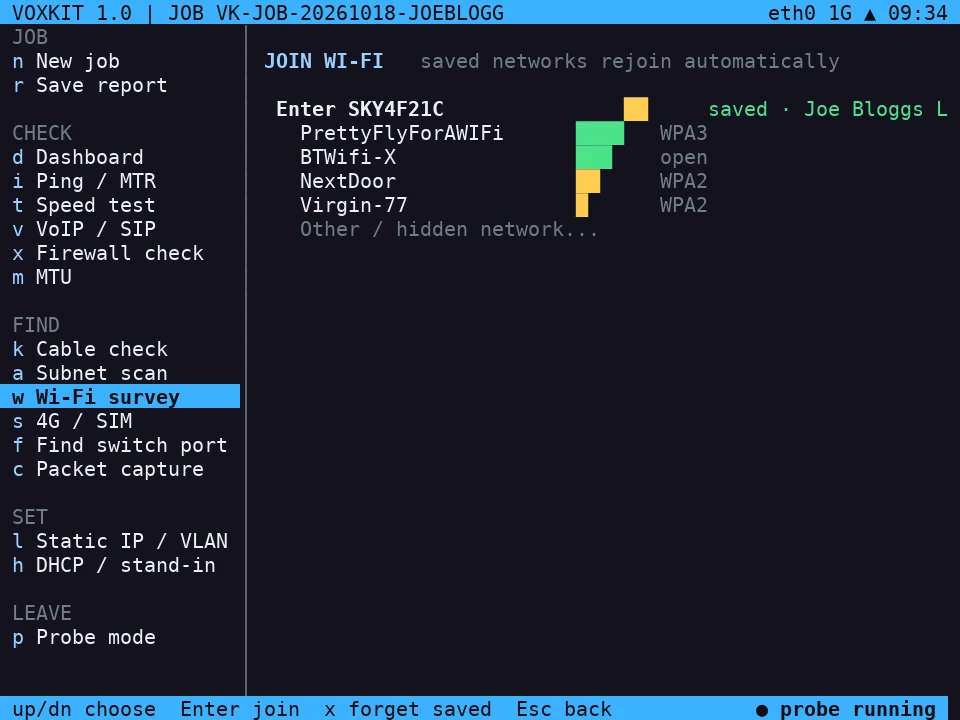
Wi-Fi (built in)Wi-Fi surveys, testing as staff experience the Wi-Fi, and sending reports.2.4 and 5 GHz. Customer networks are remembered per site and can be forgotten with one key.
USB 3 and USB 2The 4G dongle, or a memory stick to copy reports off.The 4G dongle draws extra power: use it on charge or through a powered hub if the battery is low.
USB-CCharging.The unit keeps running while it charges, so it can be left on site in probe mode.
Built-in hotspotDownloading reports to a phone when the customer's network can't be used.Turned off automatically when you finish, so the unit always gets its own internet back.
Battery and charging

Reading the four lights.

When you plug the charger in, all four lights flash once to show power is connected. After that, the light for the quarter being filled flashes.

  • First light flashing: charging, 0 to 25%
  • First solid, second flashing: 25 to 50%
  • Three solid, fourth flashing: 75 to 100%
  • All four solid: full

Use a 5 V 3 A USB-C charger or a laptop USB-C charger. A low-power phone plug may not keep up while the unit is working.
Under 25% on battery
Charging, 0 to 25%
Charging, 50 to 75%
Full
Controls

Learn it in five minutes.

The same handful of keys work on every screen. The bottom bar always shows the keys for the tool you're on.

↑↓

Choose a toolMove up and down the menu.

a–x

Jump to a toolEach tool's letter is shown beside its name.

Enter

RunStart, stop or save the tool on screen.

eo

Extra actionsEdit settings or the second action, such as the IT message or a hotspot.

jk

ScrollThrough long lists like scans and Wi-Fi surveys.

q

QuitPuts the network settings back to normal first.

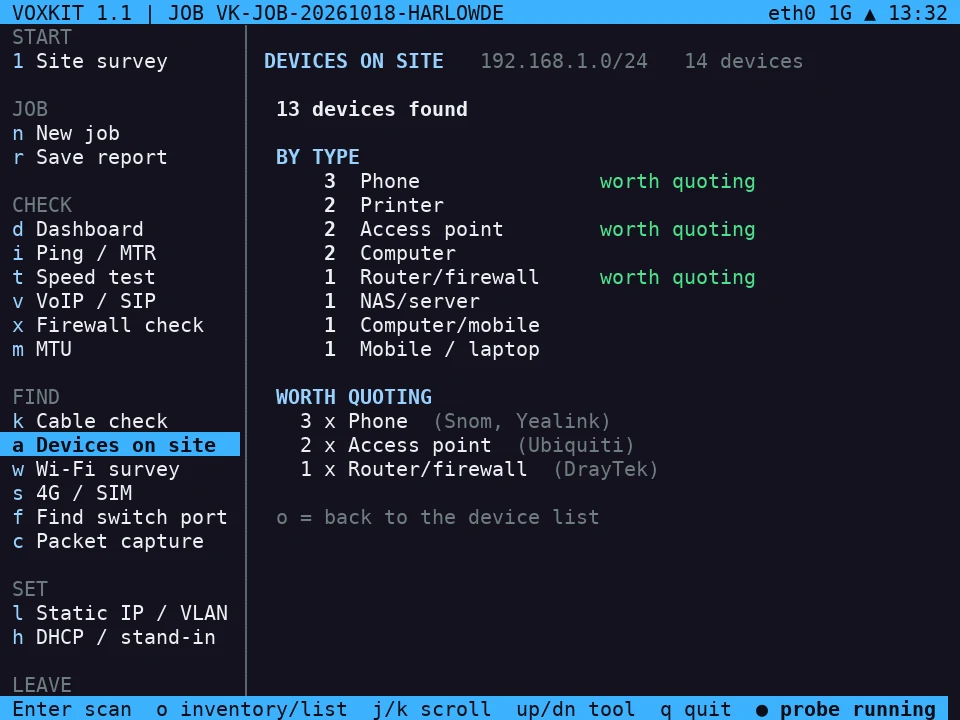
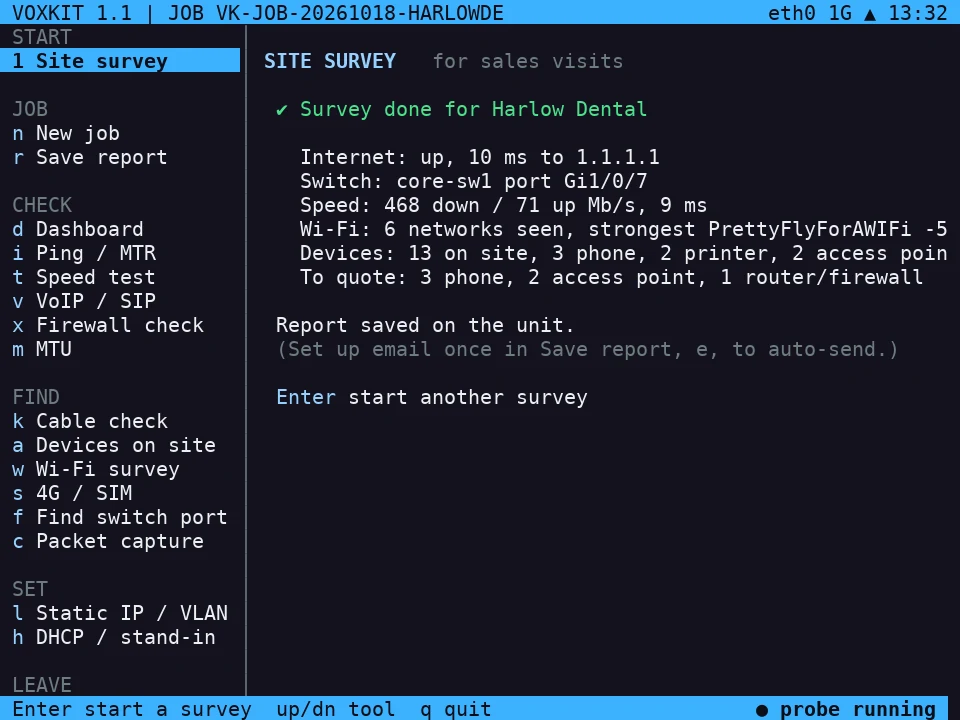
After two minutes idle the screen shows a falling-code screensaver that spells out live status: the network, switch port, temperature and whether probe mode is running. Any key brings you back.

On the screen

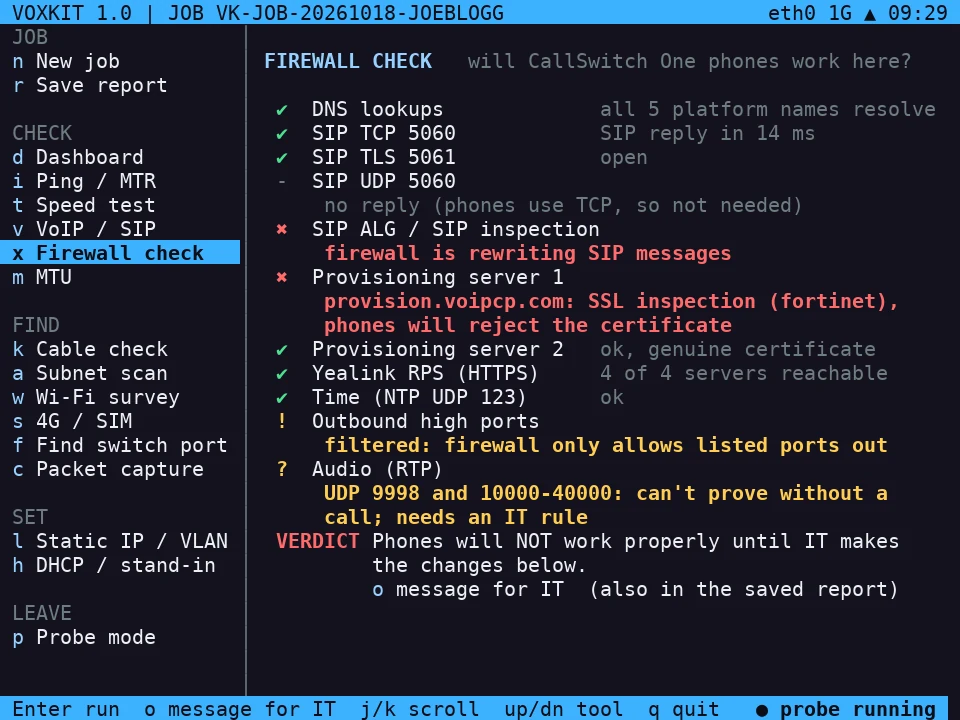
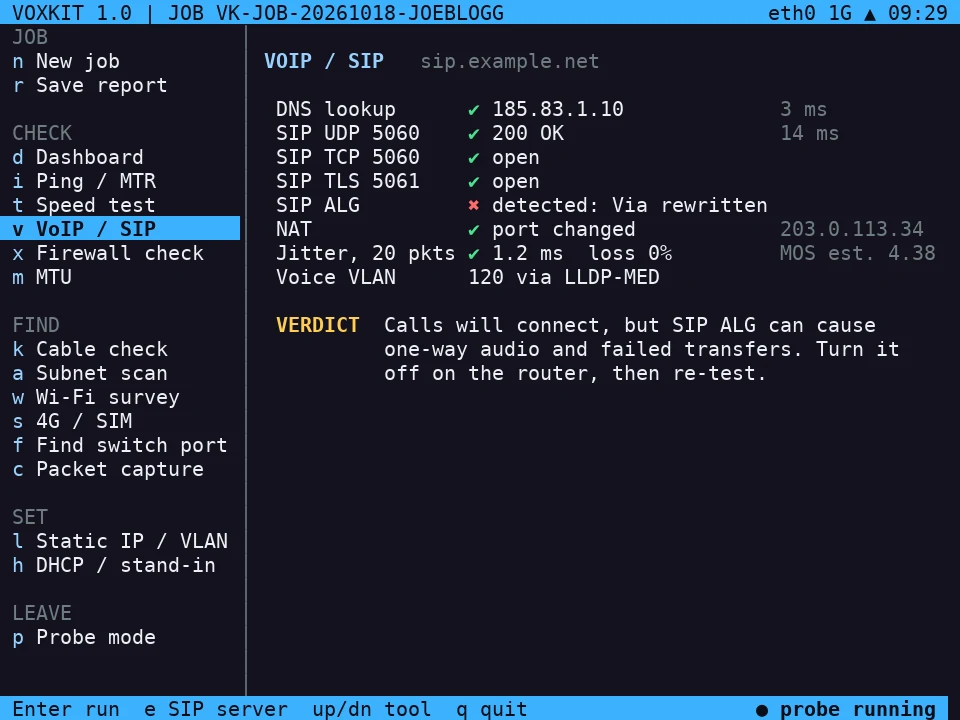
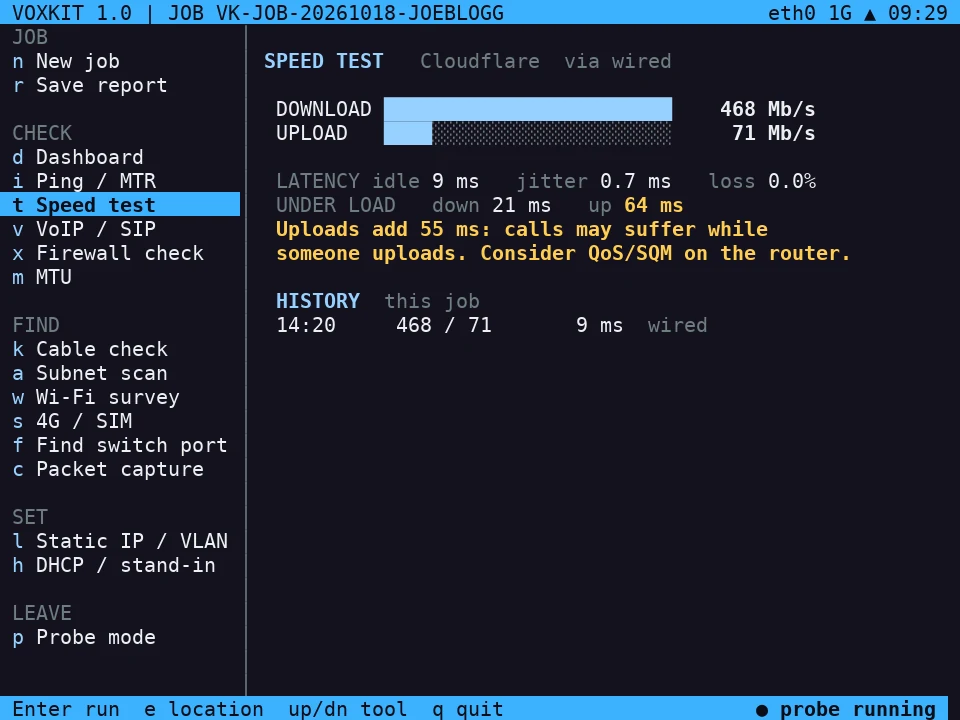
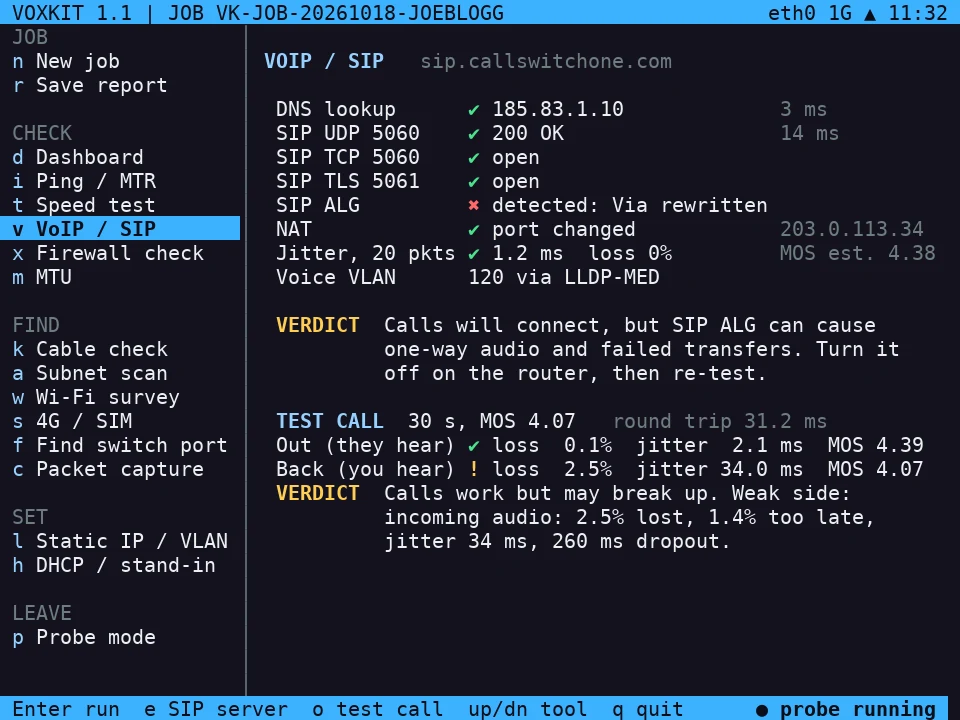
What engineers actually see.

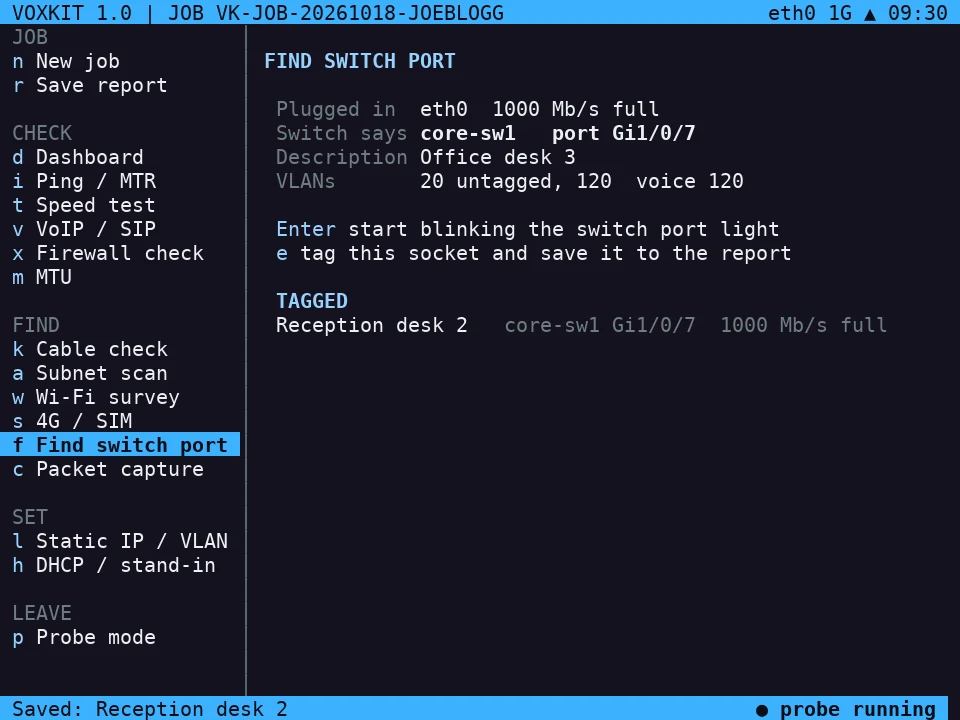
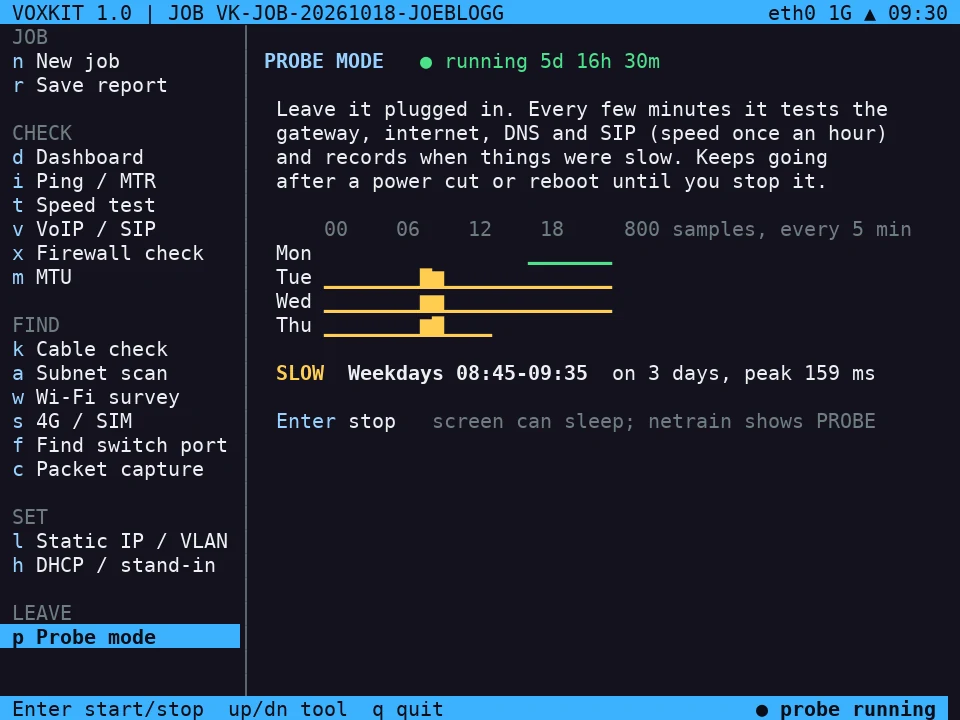
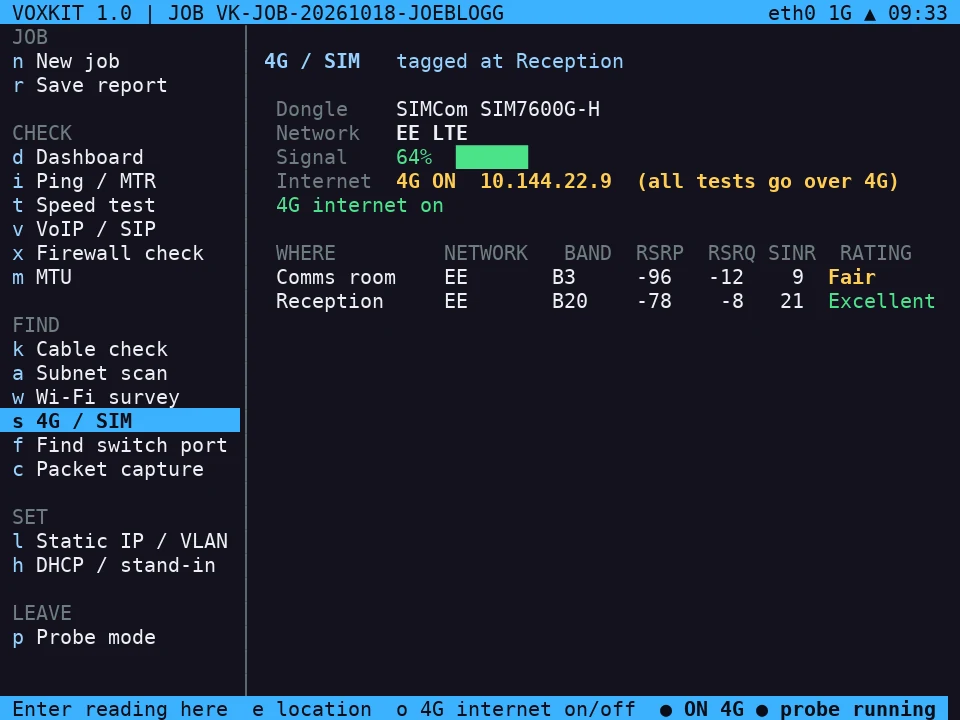
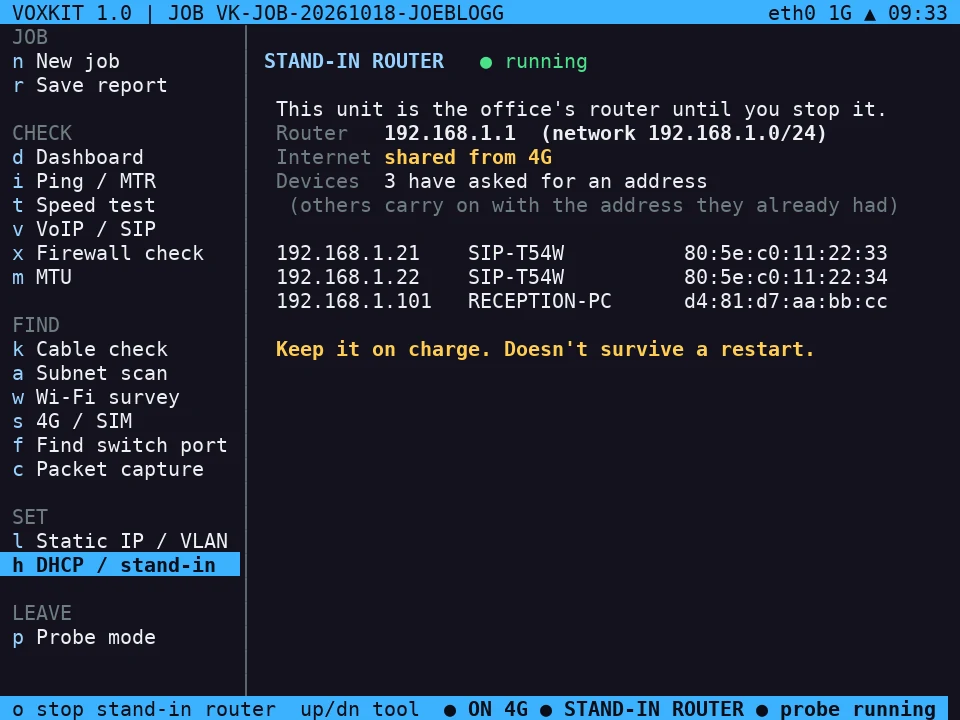
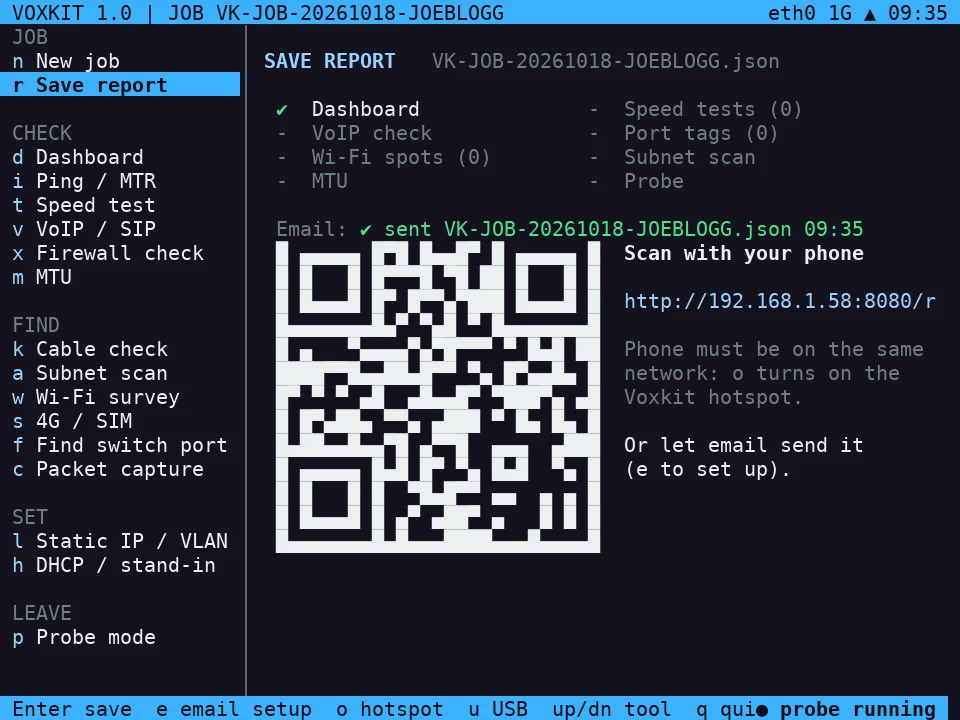
All screens show sample data.

New in 1.1

Every unit, live, from your desk.

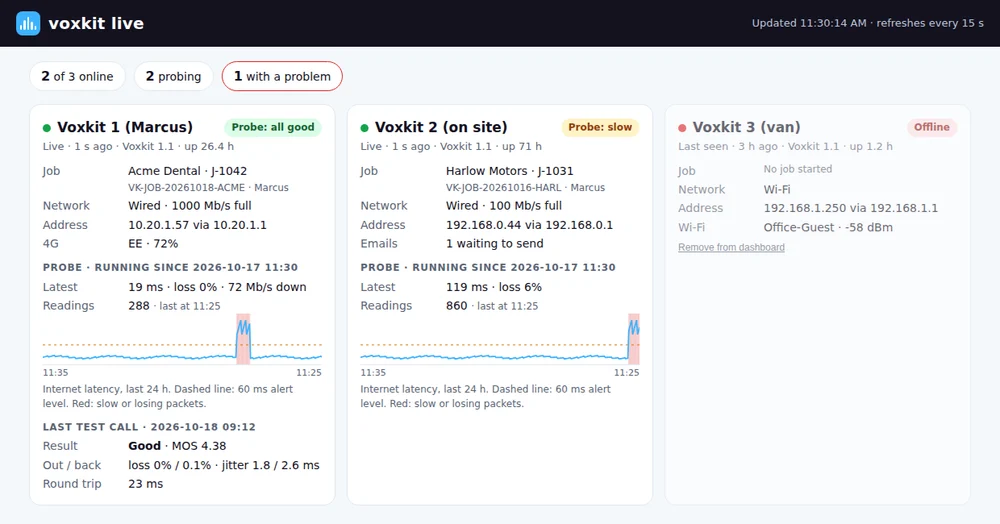
Units left on site or out with your team report in to a private, password-protected dashboard. See which are online, what job each is on, how it's connected, and for anything in probe mode, a live 24-hour latency graph and the sites with a problem right now. The last test-call result shows too. Units send status only, never passwords or Wi-Fi keys.

Runs on your own small server. Works on a phone.

The Voxkit live dashboard showing three units
Specifications

The handheld.

ComputerRaspberry Pi 4, quad-core 64-bit Arm Cortex-A72
Operating systemRaspberry Pi OS (64-bit, Debian based)
Screen3.5 inch colour display
KeyboardBuilt-in QWERTY with arrow and function keys
Wired networkGigabit Ethernet (RJ45)
WirelessDual-band Wi-Fi 802.11ac (2.4 and 5 GHz), Bluetooth 5.0
USB2 × USB 3.0, 2 × USB 2.0
PowerUSB-C, rechargeable lithium battery, four-light charge gauge
StoragemicroSD card, holding the software, jobs and reports
Base hardwareWaveshare PocketTerm35 handheld
Optional

The 4G dongle.

ModelWaveshare SIM7600G-H 4G USB dongle
Network4G LTE Cat-4, with 3G and 2G fallback, global bands
SIMNano SIM, any UK network or a multi-network data SIM
AntennaExternal, screw-on
ReadingsSignal strength (RSRP), quality (SINR and RSRQ), network, band and mast
Uses4G backup surveys, 4G speed tests, the unit's own internet, stand-in router
Software
Voxkit18 tools, probe mode, email reports and alerts, simple sales mode
Site surveyOne-button mode for sales visits: check the site and email a report
Test callReal two-way audio to a Voxkit server; loss, jitter and MOS each way
Device inventoryEvery device by maker and type, with replacement opportunities
Live dashboardSee every unit and its probe readings in a browser, from anywhere
UpdatesOne-file install that keeps jobs, reports and settings
Remote accessPrivate encrypted link: see and use the unit’s own screen, live, from your PC or phone. No changes to the customer’s firewall
Good to know

Looking after it on site.

Not weatherproof

Treat it like a phone: keep it dry and use a case in the van and on site.

Leaving it on site

Plug it into power for probe mode. It carries on after power cuts and restarts.

Shutting down

Quit Voxkit before switching off, so network settings are put back first.